NextCloud Setup & Aria2 Offline Download
Preface
There are already many tutorials online for setting up NextCloud. This tutorial shares some of my insights from the setup process for your reference.
Due to NextCloud's excellent cross-platform collaboration capabilities and its simple, easy-to-use interface, the following introduces the installation method via snap.
P.S. The server used in this article is LightSail in Japan, and the operating system is Ubuntu 18.04.
Installation Process
Log in to the server and gain root privileges
sudo -i
Enter the following commands
sudo apt-get update
sudo apt-get install
snap sudo apt-get install snapd
sudo snap install nextcloud
After a short wait, the installation is successful if the following text appears

Login Interface
Enter the server IP address in the browser to access the configuration interface

Configuration Interface
The installation process is now complete
Enable HTTPS
After installing the NextCloud server, now proceed to set up the domain name.
First, resolve the domain name you want to bind to your server's IP address in advance. It is best to wait until the resolution is confirmed successful before proceeding to the next steps.
Enter the following command to apply for a Let's Encrypt certificate:
sudo nextcloud.enable-https lets-encrypt
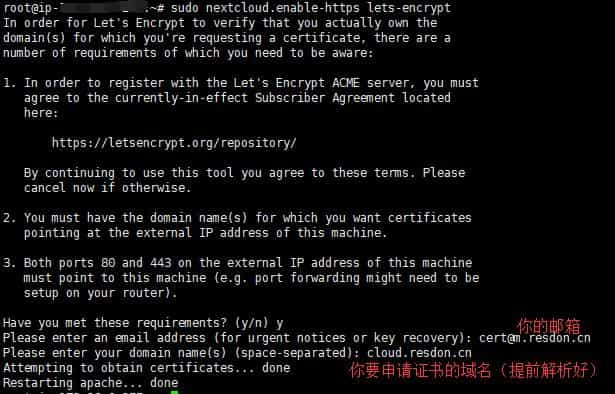
Domain Certificate Application
I encountered an issue at this step; after deploying the certificate, I could not access my domain name or IP address. This problem was resolved after uninstalling and reinstalling.
P.S. Uninstall command: snap remove nextcloud
After reinstalling, you need to re-execute the certificate application command
At this point, accessing via the domain name will show an untrusted domain error, as shown in the figure below:
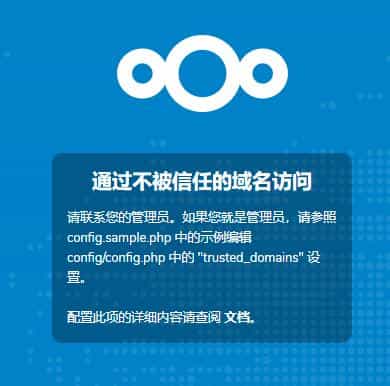
"Untrusted Domain"
At this time, just enter the following command
Replace domain.com with your own domain name. If you need to add a new domain, change 1 to 2, and so on
sudo nextcloud.occ config:system:set trusted_domains 1 --value=domain.com
You can now access it normally. NextCloud is now ready for regular use.
Using Aria2 for Offline Downloads
If you can use the server to download videos and other resources offline, you can achieve offline downloading, allowing you to click and watch immediately. However, please make sure not to violate the laws and regulations of the country where the server is located, otherwise your server might be shut down for breaching TOS rules.
First, click on the avatar in the top right corner and select Apps, then click on Disabled apps, and enable External storage support.
Go back to the server and execute the installation of Aria2:
wget -N --no-check-certificate https://raw.githubusercontent.com/ToyoDAdoubi/doubi/master/aria2.sh && chmod +x aria2.sh && bash aria2.sh
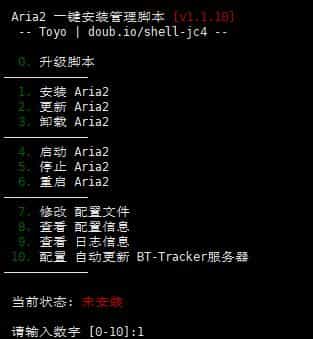
One-click Installation Script
Next, modify the Aria2 download storage path. Open: vi /root/.aria2/aria2.conf, find: dir=XXX, and it is recommended to change it to /var/snap/nextcloud/common/nextcloud/data/xxx/files/Downloads (where xxx is the username set during installation)

Download Path Modification
It is also recommended to change the rpc token to a string that is easy for you to remember.

RPC Token Settings
After the modification is completed, run service aria2 restart to restart the aria2 service.
Now return to the NextCloud settings interface, click on External storage under Administration, and add the local external storage you just configured.

Add External Storage
Next, download an Aria2 visualization program (The following steps refer to Wazhanfou)
!! Remember to confirm whether the download location is the one you set !!
Downloaded files may not appear in NextCloud immediately. You need to use NextCloud's built-in occ feature to refresh the files in the folder.
First, create an executable file in the root directory
vi /root/nextcloud.sh
Enter the following content
#!/bin/bash
sudo nextcloud.occ files:scan --all
After saving and exiting
Grant it permissions, chmod 777 nextcloud.sh
Run crontab -e and press Enter
Add a line of code at the bottom:
*/1 * * * * /root/nextcloud.sh
Press Ctrl+X to exit, then Y to confirm and press Enter. The above command means executing nextcloud.sh every minute. You can also change it to 2 minutes or 30 minutes, which can be modified according to actual needs.
Additionally
It is not recommended to use BT downloads on Japanese servers, as they can easily go down~