Foreword
After enabling pjax local refresh, entering the next page only requires loading article-related files, and most files do not need to be reloaded, which can significantly reduce the website's load. For visitors, there is no stiff interface jump, which is also great for user experience.
However, if prism code highlighting is also enabled, the prism.js file will not reload when entering the article page, which causes the code highlighting in the article to fail.
The built-in Prism code highlighting reload function of my theme does not work for my situation, so I have to look for other solutions.
There are several solutions for this situation online. Here is one of the simplest solutions specifically for WordPress.
Modify Related Files
The method is indeed very simple; you only need to modify one file. For the Asky series themes, the file location to modify is /wp-content/themes/ASky/js/jquery.pjax.js. If you are not using this type of theme, it is recommended to search for this js file name.
The modification location is below Line 312, as shown in the figure below.
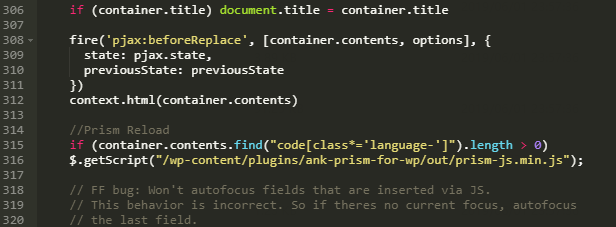
Location of the modified code
The related code is as follows:
//Prism Reload
if (container.contents.find("code[class*='language-']").length > 0)
$.getScript("/wp-content/plugins/ank-prism-for-wp/out/prism-js.min.js");//Your Prism.js location
Since a Prism plugin is used, the file location in the last line is the prism.js location used in the plugin.
After the setup is completed, code highlighting can be used normally. In addition, if you use a CDN, the cache might last a bit longer. You can manually refresh this file in the CDN console. When refreshing, pay attention to whether the loaded jquery.pjax.js file on the website has ?ver=x.x.x appended to it; if it does, remember to include it.